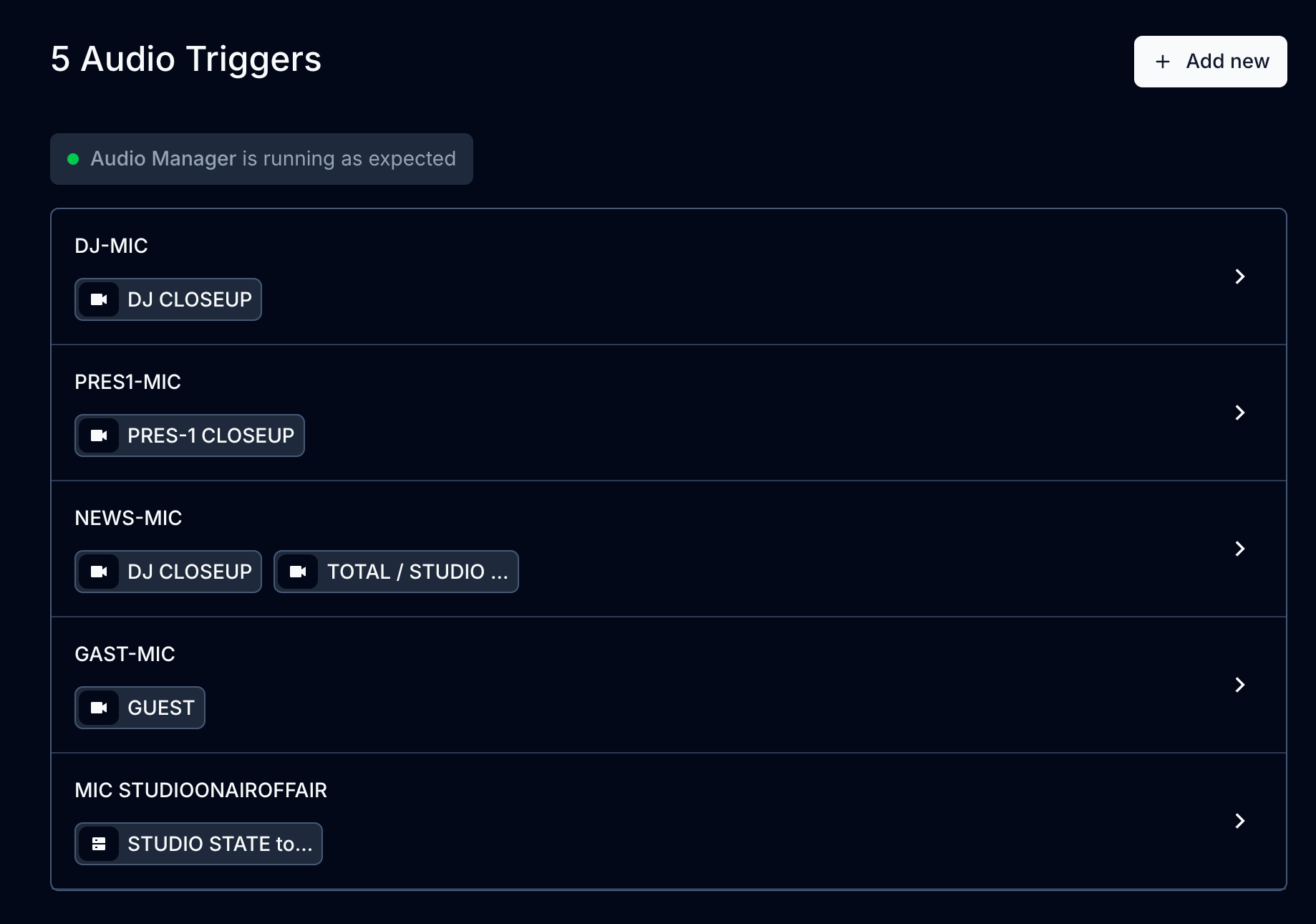
Audio Triggers are the core of VRA's audio-driven automation. They monitor your studio's audio inputs, detect activity like speech or music, and automatically execute actions. Switching cameras, firing macros and controlling your video output.
What Is an Audio Trigger?
An Audio Trigger is a rule that monitors a specific audio input channel, detects when audio levels exceed a configured threshold, and fires one or more commandos in response. When the audio drops below the threshold, the trigger deactivates and can fire separate release commandos.
Each trigger is configured with a type that determines what kind of audio activity it detects, a threshold in decibels that controls its sensitivity, and a set of commandos that define what happens when it fires.
Trigger Types
Type | Description |
Human Speaking | Detects a presenter speaking into a studio microphone |
Human Speaking External | Detects speech from an external or remote source |
Voice Call | Detects an incoming phone or voice call |
Music | Detects music playback |
Programmed Action Tone | Detects a specific programmed audio tone for automation cues |
Commando Actions
When a trigger fires, it executes one or more commandos. Each commando performs a specific action:
Action | Description |
Camera | Switch to a specific camera angle |
Switcher | Send a command to the video switcher |
Macro | Execute a predefined macro sequence |
Playout | Control an output player |
HTTP | Send an HTTP request to an external service |
PTZ | Move a PTZ camera to a preset position |
A single trigger can have multiple commandos. When combined with Smart Triggering, VRA intelligently selects between commandos assigned to different triggers. For example, cycling between camera angles when multiple presenters are speaking.
Creating an Audio Trigger
- Navigate to Audio Manager and open the Triggers page
- Click Add New
- Enter a Name to identify this trigger (e.g., "Host Mic", "Guest Left", "Music Input")
- Select the Type that matches the audio source (Human Speaking, Music, etc.)
- Assign the Audio Input this trigger should monitor
- Set the Threshold in dB - audio above this level activates the trigger
- Add one or more Commandos to define what happens when the trigger fires
- Optionally add Release Commandos for actions when the trigger deactivates
- Configure Conditions if the trigger should only be active during specific programs
- Set a Priority level to control which trigger takes precedence when multiple are active
- Save your trigger configuration
Threshold and Live Metering
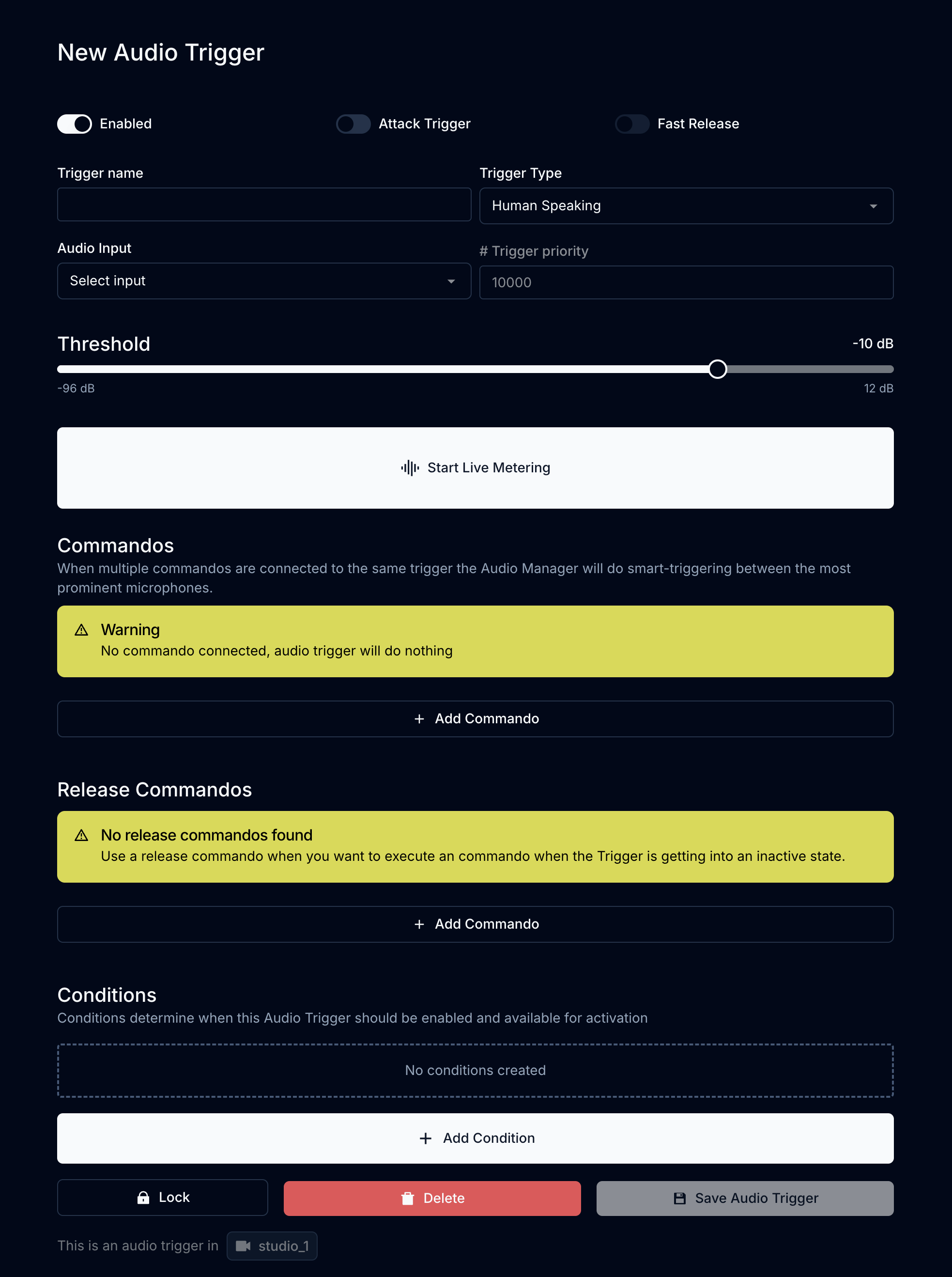
The threshold determines how loud the audio signal must be before the trigger activates. It is set in decibels (dB) - a lower value means the trigger is more sensitive.
The trigger detail page includes a live meter that shows the real-time audio level from the assigned input. Use this to calibrate your threshold:
- Open the trigger's detail page
- Have the presenter speak at their normal on-air volume
- Observe the live meter to see the typical signal level
- Set the threshold just below the normal speaking level
- Test that the trigger activates consistently during speech and stays inactive during silence
Commandos
Commandos define the actions that fire when a trigger activates. You can assign multiple commandos to a single trigger - for example, switching to a camera angle and sending an HTTP notification simultaneously.
Each commando specifies an Action type (Camera, Switcher, Macro, etc.) and the action-specific parameters (which camera, which macro, which URL).
When Smart Triggering is enabled in your studio's audio settings, VRA manages transitions between triggers intelligently. If multiple presenters are speaking, the system uses the Keep Active Speaker Time and Dynamic Switching Time settings to determine when to switch, avoiding rapid back-and-forth cuts.
Release Commandos
Release Commandos fire when a trigger becomes inactive - when the audio drops below the threshold. Use these for cleanup actions, such as returning a PTZ camera to its home position or resetting a switcher state.
Release commandos follow the same configuration as regular commandos: select an action type and provide the action-specific parameters.
Conditions
Conditions control when a trigger is available based on your broadcast schedule. A trigger with conditions only activates during specific scheduling programs - for example, you might configure a "Guest Mic" trigger to only be active during interview shows.
This lets you maintain a single set of triggers in your studio while automatically adapting behavior for different show formats.
Attack Trigger
When Attack Trigger is enabled, the trigger fires immediately when the audio signal crosses the threshold, without waiting for the standard detection window. This is useful for triggers that need instant response - such as detecting a programmed action tone that should immediately switch to a specific camera.
For speech detection triggers, leaving attack trigger disabled generally produces smoother results, as the standard detection window helps filter out brief audio spikes.
Additional Settings
Enabled - Toggle whether the trigger is active. Disabled triggers are shown as gray on the status dashboard and do not process audio.
Lock - Prevents accidental changes to the trigger's configuration. A locked trigger cannot be edited until it is unlocked.
Fast Release -